Dodeca OpenAI Connector
Overview
The OpenAI connector is a modular extension that allows Dodeca to leverage OpenAI models to analyze and interpret structured reports and data. It also supports MCP (Model Context Protocol) tool sources, enabling models to call external tools and services during a conversation.
Once imported, it enables AI-assisted insights, summarization, and data interpretation directly within the application and views.
Prerequisites
-
An OpenAI API key obtained from https://platform.openai.com.
Getting Started
To begin using the Dodeca OpenAI connector, the OpenAI Connector module must be downloaded and imported into the Dodeca tenant. An OpenAI connection must be created and configured to connect to the OpenAI platform.
ℹ️ Note: Supported in Dodeca 8.7.0 and higher, an AI Chat Component module provides a familiar, assistant-ui-based chat component.
OpenAI Connection Properties
Connection Properties
Only a single property is required to configure and test an OpenAI connection:
| Property | Requirement | Description |
|---|---|---|
ApiKey |
Required |
An OpenAI API key obtained from https://platform.openai.com. |
Test Properties
The following properties can be set to execute a prompt and generate a response during testing:
| Property | Requirement | Description |
|---|---|---|
Model |
Required |
An OpenAI language model. |
Effort |
Optional |
An explicit reasoning effort level, if a reasoning model is chosen. |
Instructions |
Optional |
An instruction set with which to prime the chosen model. |
Tool Sources |
Optional |
MCP server connections that provide tools to the chosen model. |
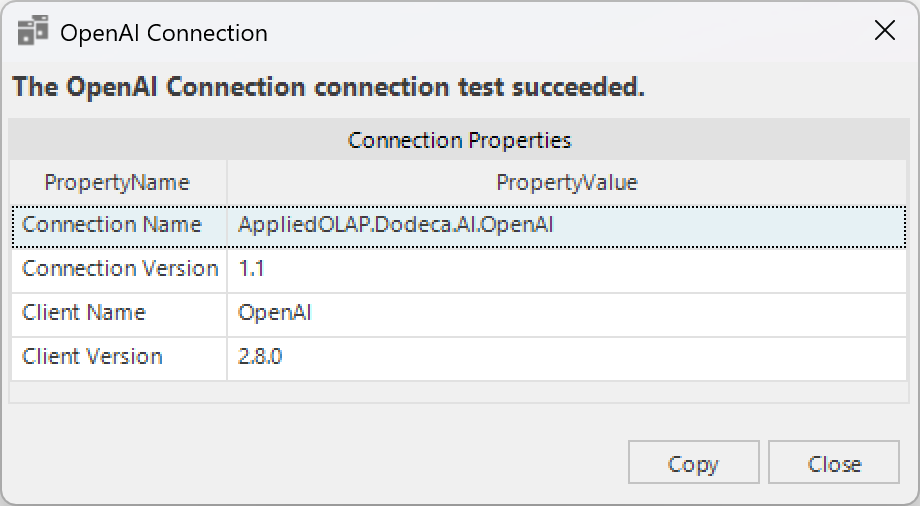
The following success message will be displayed if the connection is successful.
Using the OpenAI Connector
The SAMPLE metadata from Applied OLAP is used in the following example. To add support for and configure the OpenAI Connector, a Dodeca administrator can follow these steps:
-
Download and import the latest version of the OpenAI Connector and the AI Chat Component modules into a Dodeca tenant.
-
Restart the Dodeca application. The
OpenAI Connectorand theAI Chat Componentare now available for use. -
Create and configure an OpenAI connection using the properties above, then test it to confirm the API key is valid before proceeding.
-
Go to the
Viewseditor and select an existing Dodeca view you would like to enhance with AI capabilities. -
In the
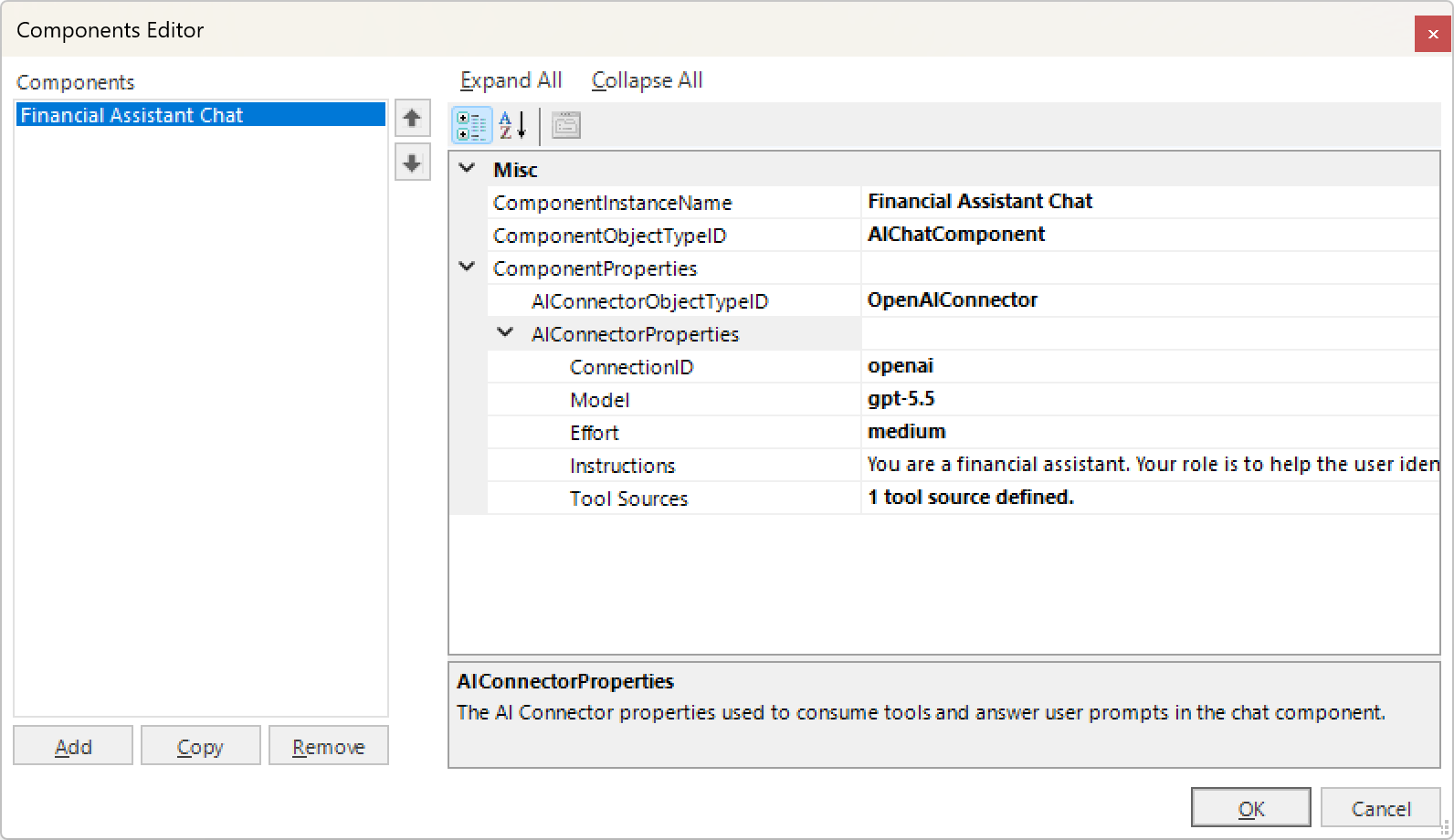
Viewproperties grid, find theComponentscategory and press the ellipsis button of theComponentsproperty to add a new component.A new
AI Chat Componentcan be added and configured via the following properties:Property Requirement Description ComponentInstanceName
Required
The name by which to identify the new component.
ComponentObjectTypeID
Required
The component type to use:
AIChatComponent.AIConnectorObjectTypeID
Required
The AI connector type to use:
OpenAIConnector.ConnectionID
Required
The OpenAI connection to use.
Model
Required
The OpenAI language model to use.
Effort
Optional
The reasoning effort level, if a reasoning model is chosen.
Instructions
Optional
An instruction set with which to prime the chosen model. These can be modified to fit your needs.
Tool Sources
Optional
MCP server connections that provide tools to the chosen model.
-
Press OK to keep the new component configuration. The
AI Chat Componentis now added to your view and ready to test. -
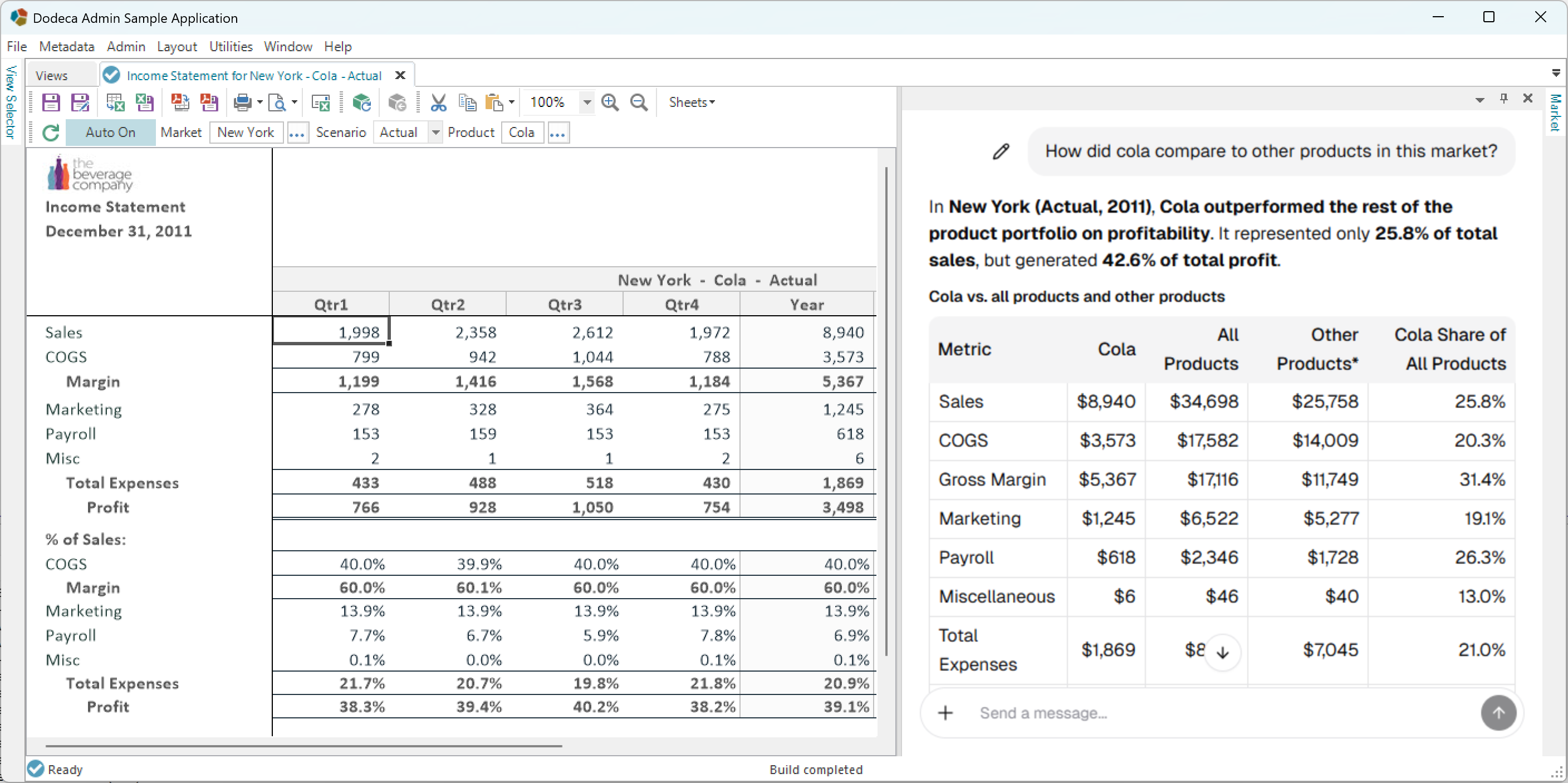
Press Preview to test and interact with the new component.
-
Return to the
Viewseditor and pressCommit Selectedto save the changes.
Release History
Version 1.1
-
Add support for sessions and multi-turn conversation interaction.
-
Add
Effort,Instructions, andTool Sourcesproperties.
Version 1.0
-
Initial release. Includes support for generating content via the workbook script AIOperations method.